Manage Locations
From the main screen tap the compass icon in the bottom right to manager your locations:
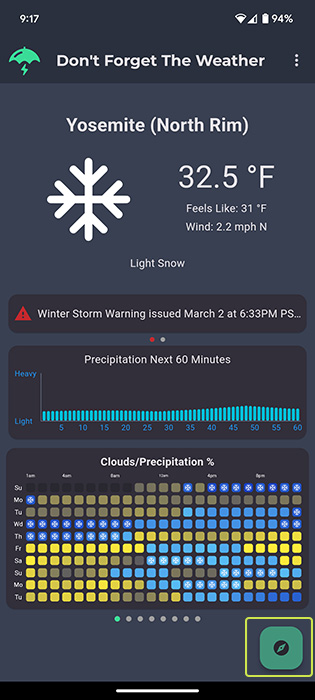
Once you tap the manage location button, a pop up will open. From this pop up you can:
- Add Location
- Reorder / Delete Locations
- Change Current Viewed Location
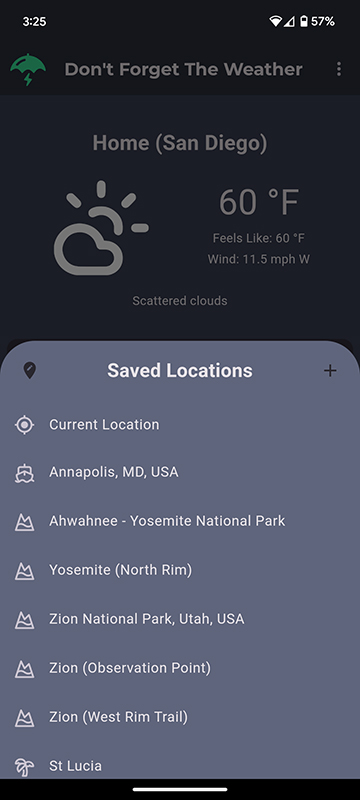
Add Location
To add a new saved location, tap the '+' highlighted below:
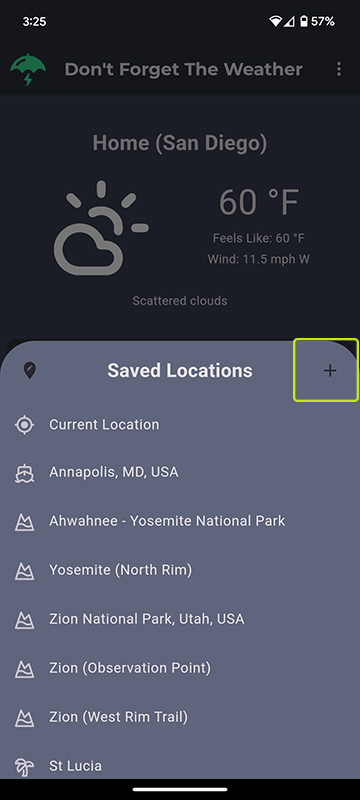
After selecting the '+" to add a new location you will be taken to a new view. From here there are three way to add a new location:
- Search Location By Name
- Use Current GPS Location
- Manually Enter GPS Coordinates
Add Location By Name
To search a location by name, you can use the search bar at the top of the page.
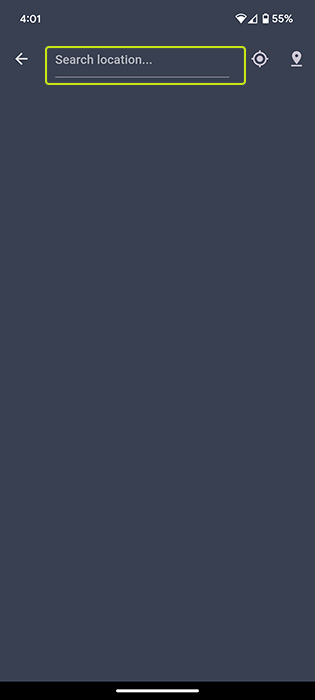
If a location is found with your current search terms, it will appear below the search field. Multiple locations may show up in a list, if you use broad search criteria. Select the location from the list that you would like to save to your favorites.
Once you select a location, you can customize its display name and choose an icon before saving.
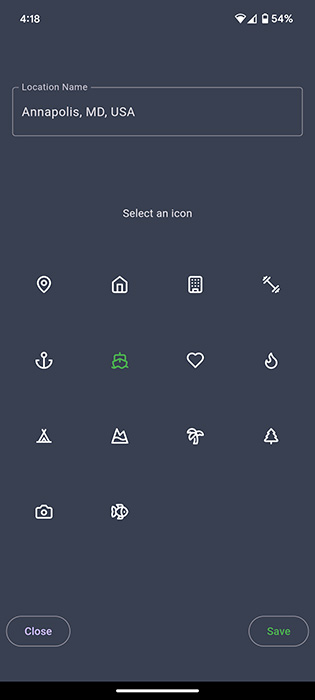
Add Current GPS Location
If you are presently at the location you want to save to your favorites, then you can simply tap the GPS icon (If GPS is enabled):
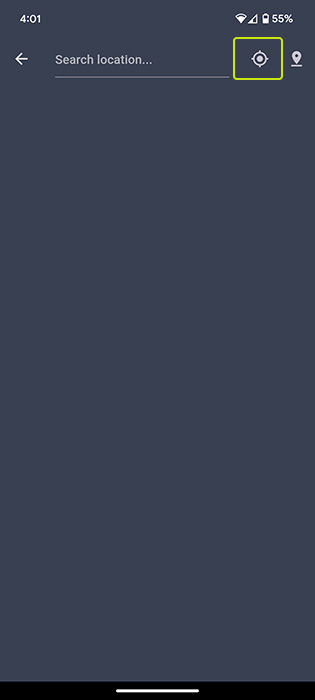
The GPS icon will turn into a spinner while the app retrieves your GPS coordinates. Once complete, you will be able to customize the display name and select an icon before saving.
Save Manual GPS Coordinate
Not all locations have a specific name you can search for, but every location on earth has a GPS coordinate. The third and final way you can add a favorite location is manually typing its GPS coordinate. This is helpful, if you do a lot of backcountry backpacking and hiking to remote locations.
To enter a manual GPS coordinate select the final icon which is a point on a map:
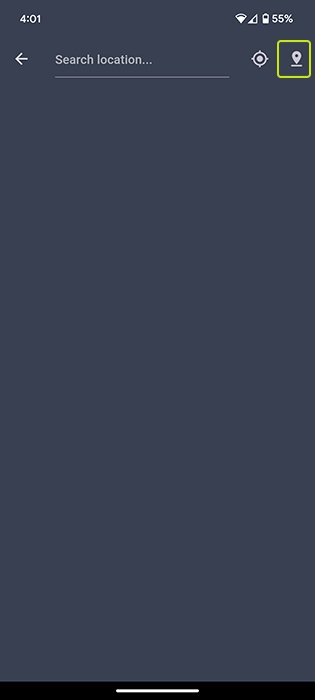
After tapping this icon a form will open which will allow you to enter the Latitude and Longitude in decimal format, type a display name, and select an icon:
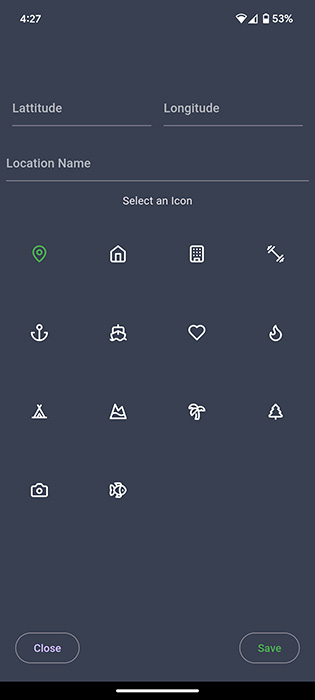
Reorder / Delete Locations List
Your saved locations list defaults to the order that locations were added. You can override this and sort the locations by any order you wish. To reorder the locations / edit their names, click the balloon icon with the pencil in it:
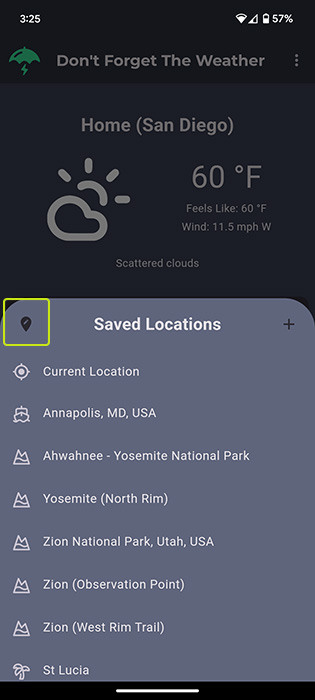
After selecting this icon you will be brought to a new view where you can reorder or delete saved locations:
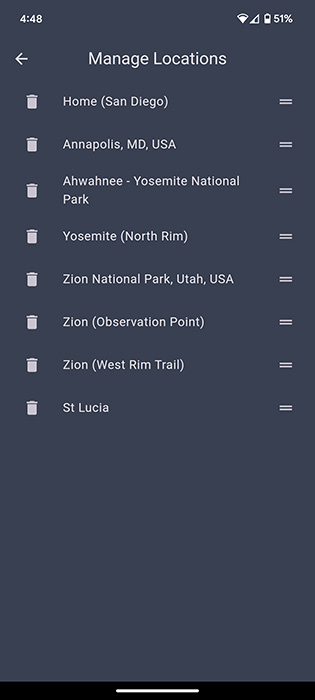
Reorder Locations
To reorder locations in the list, simply long press and item until it turns black. Once the row turns black then drag it to a new position in the list.
Delete Location
To delete a saved location from the list, select the trashcan icon.